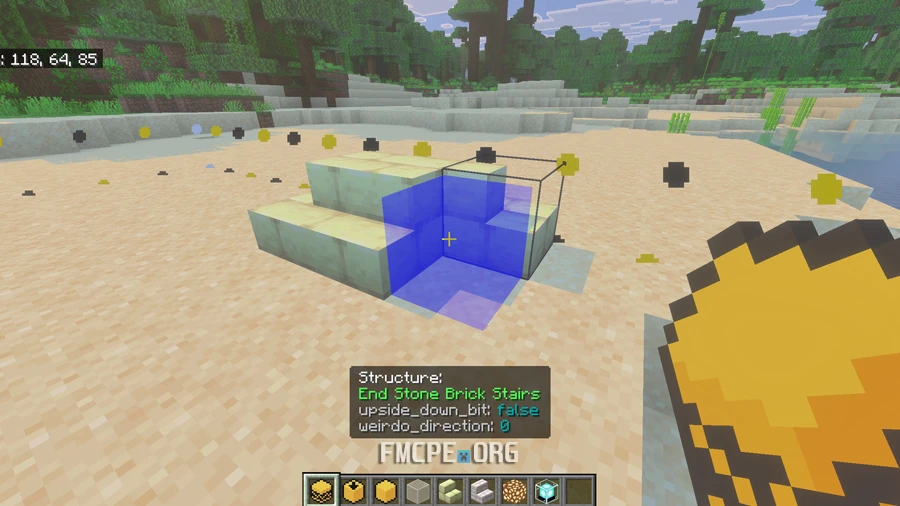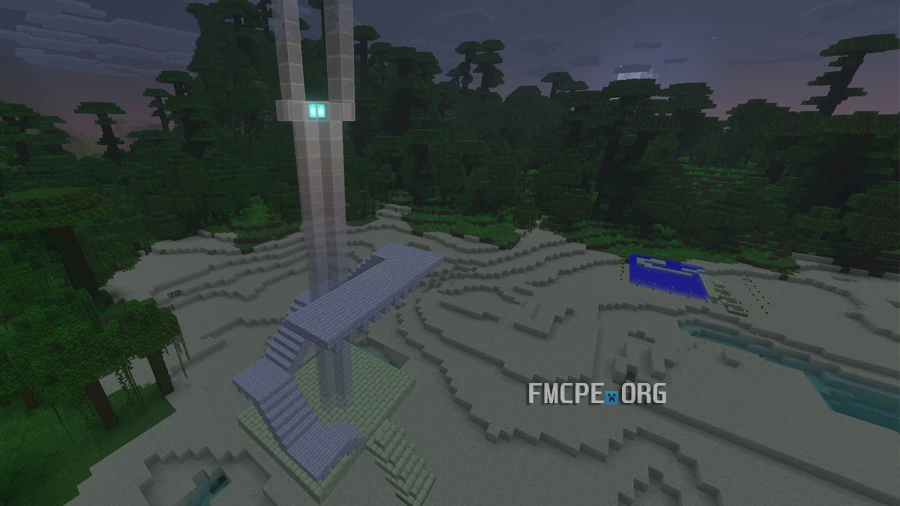
Construct — hologram schematics
Construct allows you to save your own creations and recreate others' designs using hologram schematics. The mod records every block’s position and type to create a guided, step-by-step building experience. The hologram shows you exactly where to place each block, making it a perfect tool for learning how to build complex structures.
Credits: ForestOfLight
How It Works
- To get started, you can either save your own build or import a file from another player.
- File Format: Builds are saved as .mcstructure files.
- File Path: To use an external build, place the file in: internal_storage/games/com.mojang/behavior_packs/Construct BP/structures
Saving a Build In-Game
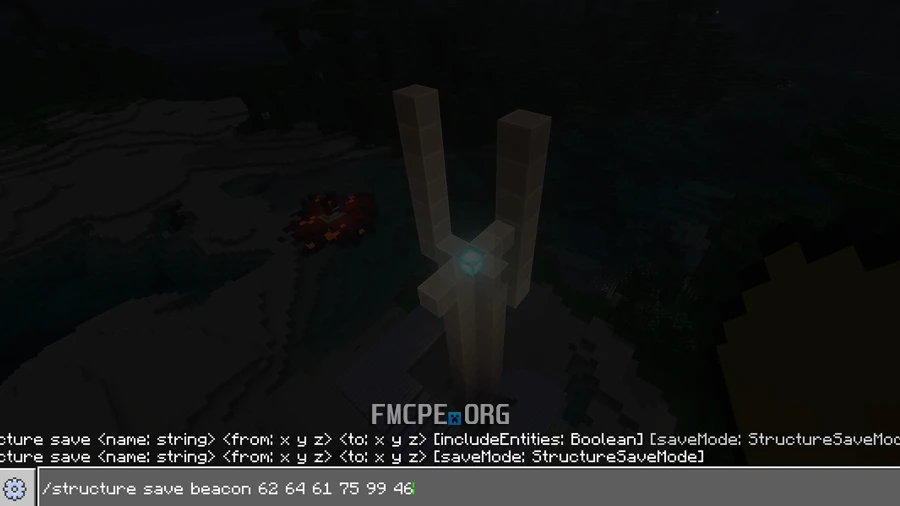
You can save structures directly in Minecraft by using a command that defines the area of your build. Think of this as drawing an invisible box around your creation by marking two opposite corners:
- Command: /construct save [Build_Name] [x1 y1 z1] [x2 y2 z2]
- Build_Name: The name you want to give your save.
- x1 y1 z1: The coordinates of the bottom-front corner of your build.
- x2 y2 z2: The coordinates of the top-back corner on the opposite side.
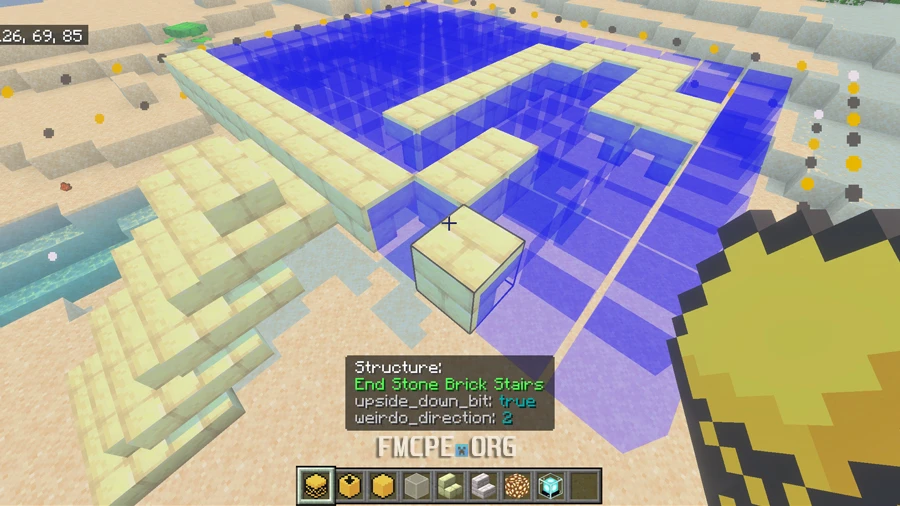
How to Start Building
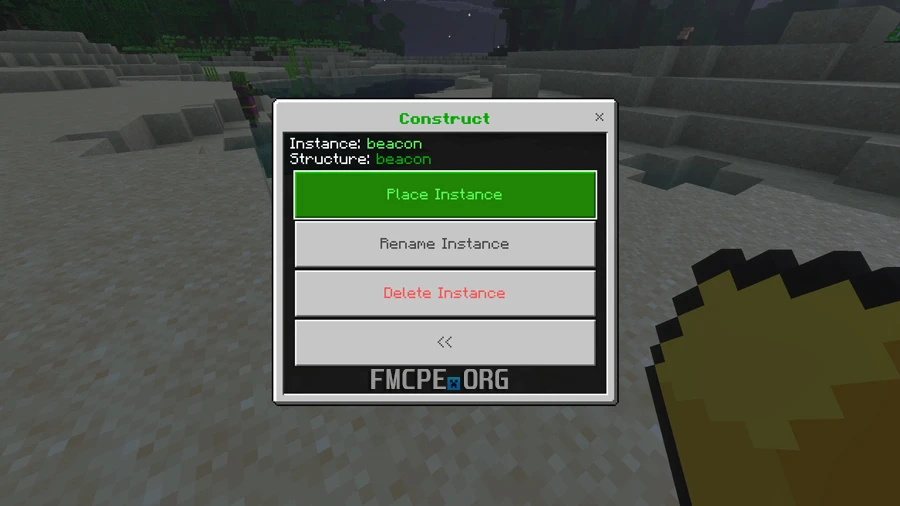
- Open the Menu: Use the Construct item to open the main interface.
- Select a Build: Choose your saved file and start a "new instance." You will be prompted to enter the name of the build you wish to load.
- Building by Layers: To keep things organized, the mod displays the build one layer at a time. Using the same Construct item, select "Move Up a Layer" to see the next level of blocks.
- Easy Place Mode: In the Construct settings, you can enable "Easy Place." When this is active, you can use a specific item to automatically fill the hologram with the correct block simply by tapping on the holographic ghost block.